Free Shipping on Orders Over $299 | 30-Day Money-Back Guarantee Get a Free Quote

Ortur Resources — Everything You Need to Start Lasering

Setup guides, material settings, software downloads, and troubleshooting tips. Bookmark this page — it is the fastest way to get answers.

Quick Start in 4 Steps

Most users complete their first project within 60 minutes of opening the box. Here is the path from unboxing to first cut.

1

Assemble

The Laser Master 3 ships 90% pre-assembled. Connect the gantry to the base, plug in the laser module, and tighten six bolts. Tools are included in the box. Average time: 20 minutes.
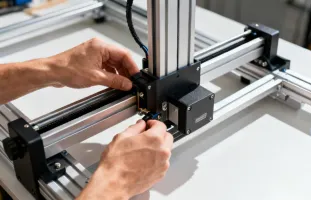
Assembling Ortur laser engraver

Connect

2

Download LaserGRBL (free) or LightBurn ($60, one-time). Connect via USB or Wi-Fi. The machine auto-homes on power-up — no manual calibration needed for your first session.
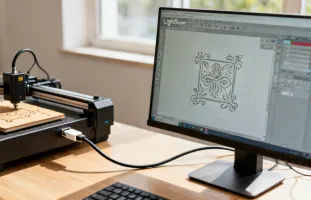
Connecting Ortur laser to software
3

Focus

Place the included focus gauge on your material. Lower or raise the laser module until the gauge sits snug underneath. This sets the focal distance to the optimal 40mm for the sharpest beam convergence.
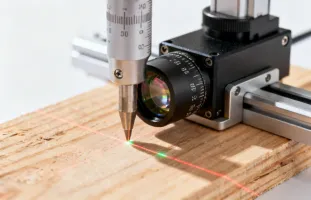
Focusing the Ortur laser module
4

Create

Load an SVG or image, set power and speed using our material presets below, hit Start. Your first engraving — typically a test grid or a name tag — takes about 3 minutes on basswood.
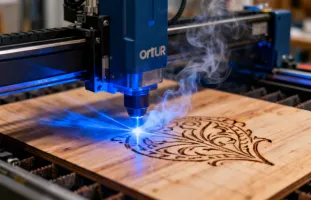
Ortur laser engraving in action

Material Settings Reference Chart

Tested on the Laser Master 3 with 10W and 20W modules. These are starting points — always run a small test on your specific material batch before committing to a full job.

Material Operation 10W Module 20W Module Passes Notes
Basswood (3mm) Cut 100% / 3mm/s 100% / 8mm/s 1 Clean cut, minimal charring
Basswood (3mm) Engrave 40% / 6000mm/min 25% / 8000mm/min 1 Good contrast at 254 DPI
Plywood (5mm) Cut 100% / 1.5mm/s 100% / 4mm/s 2 Birch plywood recommended; avoid MDF
Black Acrylic (3mm) Cut 100% / 2mm/s 100% / 5mm/s 2 Clear acrylic not supported (445nm passes through)
Leather (2mm) Engrave 30% / 5000mm/min 15% / 8000mm/min 1 Vegetable-tanned only; avoid chrome-tanned (toxic fumes)
Stainless Steel Mark 100% / 500mm/min 80% / 1000mm/min 1 Creates dark oxide mark; not deep engraving
Anodized Aluminum Mark 60% / 3000mm/min 40% / 5000mm/min 1 Removes anodization layer to reveal bare aluminum
Slate / Stone Engrave 90% / 3000mm/min 70% / 5000mm/min 1 Photo engrave mode works well; creates white marks
Glass (painted) Engrave 80% / 2000mm/min 60% / 3500mm/min 1 Apply flat black paint first; laser fractures glass through paint
Settings vary with ambient temperature, material batch, and module age. All values were tested by the Ortur applications engineering team in December 2024 at 25 degrees Celsius and 50% relative humidity using factory-new 10W (LU2-10A) and 20W (LU2-20A) modules. Always ventilate your workspace — even wood smoke is a respiratory irritant at sustained exposure. Material thickness tolerances were measured with digital calipers (resolution: 0.01mm).
Known Limitations of Diode Laser Processing
  • Clear and light-colored materials: The 445nm diode beam passes through clear acrylic, clear polycarbonate, and transparent glass without absorption. These materials require a CO2 laser (10,600nm) for cutting.
  • Deep metal engraving: Diode lasers create surface oxide marks on stainless steel (typically 5-20 microns deep). For engraving depth exceeding 50 microns, a fiber laser (1064nm) or mechanical engraver is required.
  • Thick stock speed: Cutting plywood thicker than 5mm at production speeds requires multiple passes, which increases cycle time. For sustained high-volume cutting of material over 10mm, a higher-power CO2 or CNC router is more practical.
  • Beam spot size: The compressed spot on Ortur modules measures approximately 0.05 x 0.1mm, which limits engraving resolution to roughly 500 DPI equivalent. Applications requiring finer detail (such as QR codes on small medical instruments) need a fiber laser with a smaller spot size (0.02mm or below).

Compatible Software

Ortur lasers work with industry-standard G-code controllers. Choose the software that matches your experience level and operating system.

LaserGRBL

Free

Windows only

  • Best for beginners — simple, no learning curve
  • Image-to-engrave workflow in 3 clicks
  • G-code streaming with real-time preview
  • Limited vector design tools

Best for: First-time laser users who primarily engrave photos and simple text.

Inkscape + Extensions

Free

Windows / macOS / Linux

  • Professional-grade SVG vector editor
  • Export G-code via J-tech plugin
  • Steep learning curve but highly capable
  • No direct machine control

Best for: Designers who already use Inkscape and want to prepare files for laser cutting.

Safety Guidelines

A diode laser is a Class 4 device. Following these guidelines is not optional — it is how you protect your eyes, your lungs, and your workspace.

Always Required

  • OD5+ laser safety goggles rated for 440-460nm (blue diode wavelength). Regular sunglasses are not sufficient — the beam will damage your retina in under 0.25 seconds.
  • Active ventilation when cutting or engraving any material. At minimum, use a fan pointing away from you. For sustained use, connect an inline duct fan to an enclosure exhaust port.
  • Fire extinguisher within arm's reach. Small material fires are the most common laser accident. A 2kg CO2 extinguisher is the recommended type (does not damage electronics).
  • Never leave the machine unattended during operation. Ortur machines have flame detection that pauses the job, but it is not a substitute for human supervision.

Materials to Avoid

  • PVC / Vinyl — releases hydrochloric acid gas that corrodes metal parts and is acutely toxic to breathe.
  • Polycarbonate — absorbs the diode wavelength poorly and produces bisphenol-A fumes at decomposition temperatures.
  • ABS plastic — releases hydrogen cyanide at cutting temperatures. There is no safe way to laser-cut ABS without an industrial fume extraction system.
  • Carbon fiber composites — creates airborne fiber fragments that are a severe respiratory hazard and can short-circuit electronics.
  • Chrome-tanned leather — releases hexavalent chromium compounds. Use vegetable-tanned leather only.

Common Troubleshooting

Before contacting support, check these solutions for the issues we see most frequently.

Laser does not fire / very weak output
  1. Check the focus distance — an out-of-focus beam spreads energy over a larger area, reducing apparent power by up to 90%.
  2. Inspect the laser lens for debris or smoke residue. Clean with a cotton swab and isopropyl alcohol (90%+).
  3. Verify the power setting in software. LightBurn defaults to 1% power on new layers.
  4. Test with S-value = 1000 (max) at low speed on scrap wood. If still no mark, the module may need replacement.
Engraving is blurry or has inconsistent depth
  1. Re-check focus distance with the gauge — even 2mm off degrades resolution noticeably.
  2. Ensure the material is flat. Warped plywood or leather causes variable focus across the bed.
  3. Tighten the belt tension. Push the belt with your finger — it should deflect no more than 3mm.
  4. Reduce speed by 20% and test. Some materials need slower passes for consistent marking.
Machine makes grinding noise during movement
  1. Check that the eccentric nuts on the V-wheels are not over-tightened. They should allow smooth rolling with no play.
  2. Verify the gantry moves freely by hand when powered off. Resistance points indicate a mechanical binding.
  3. Apply a thin layer of PTFE-based dry lubricant to the linear rails (not oil — oil attracts dust).
USB connection drops during a job
  1. Replace the USB cable with a shorter, shielded cable (under 1.5m). Long cables and hubs cause signal integrity issues.
  2. Disable USB power management in Windows: Device Manager > USB Root Hub > Properties > Power Management > uncheck "Allow the computer to turn off this device."
  3. If using LightBurn, switch to "Send via Streaming" instead of buffered transfer for large files.

Still Have Questions?

Our support team is available Monday through Friday, and most questions get answered within 12 hours. You can also check the Ortur Blog for in-depth tutorials and project walkthroughs.